If you are using Microsoft 365, you might like to use a signature management application that appends to emails after you send them from any device. The email signature management application creates brand consistency and is a great marketing tool.
This article, however, will show you the process of creating an email signature using the Microsoft 365 Outlook application. Let’s get started!
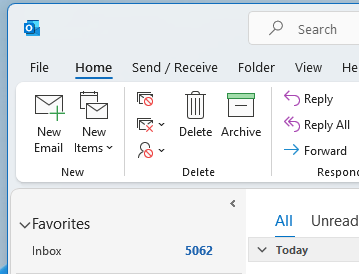
Step 1.
Choose “New Email”, as if you were composing a new email.
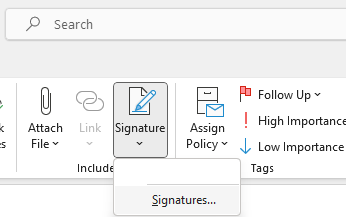
Steps 2 and 3.
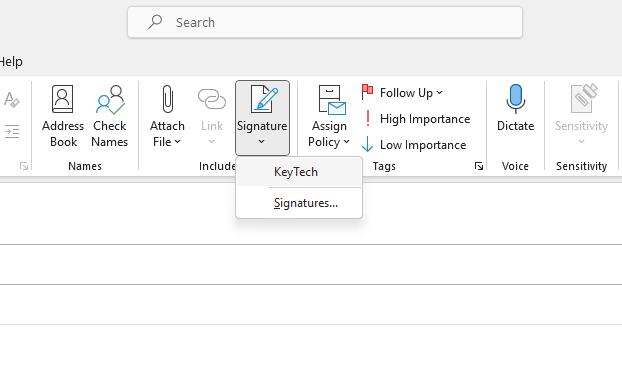
Click “Signature” then click “Signatures…”
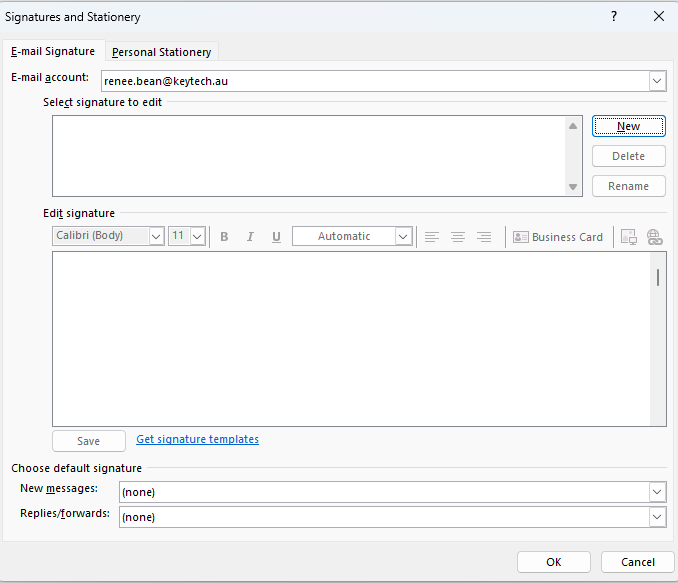
Steps 4
The Signatures and Stationery window will appear. Click the button that says “New” to create a new signature.
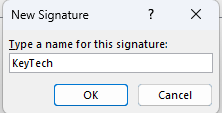
Step 5
Type a name for your signature when prompted, then click “OK”.
Step 6.
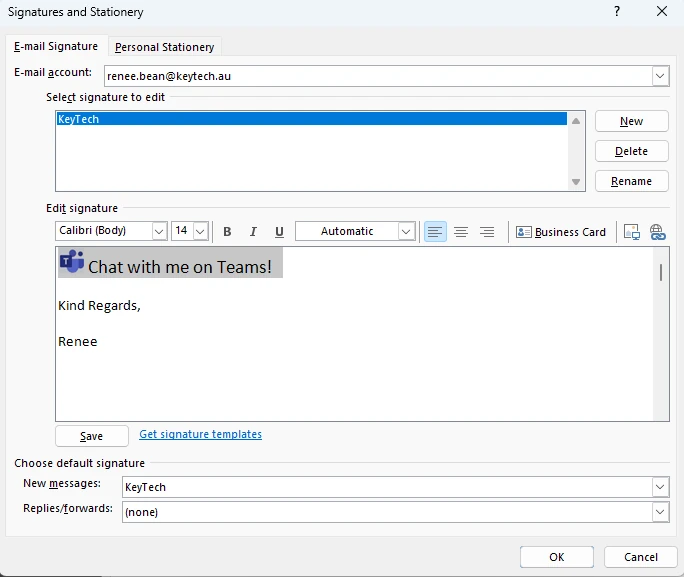
In the larger “Edit signature” field, design your signature. It is here that you can format your signature’s text and add links and images.
To add an image click the insert image icon
To add a link (or Teams chat link) to your signature, select the image or text you want to apply the link to. Next click the link icon:
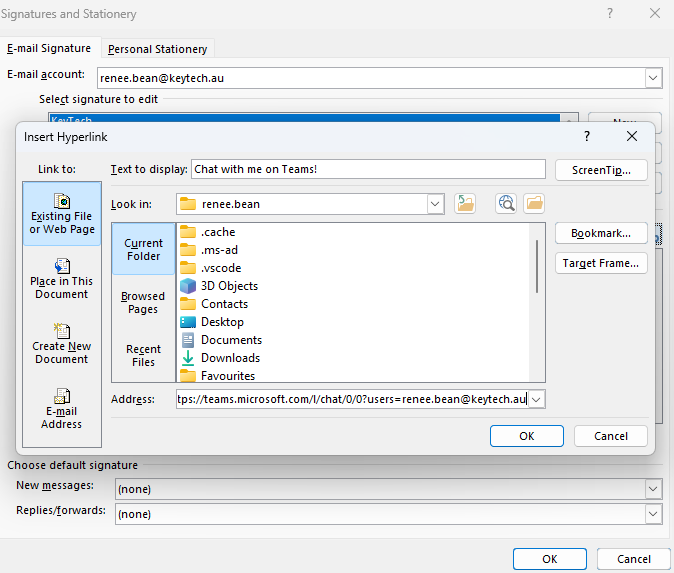
Steps 7 and 8.
Paste your link in the “Address:” field and press “OK” to continue.
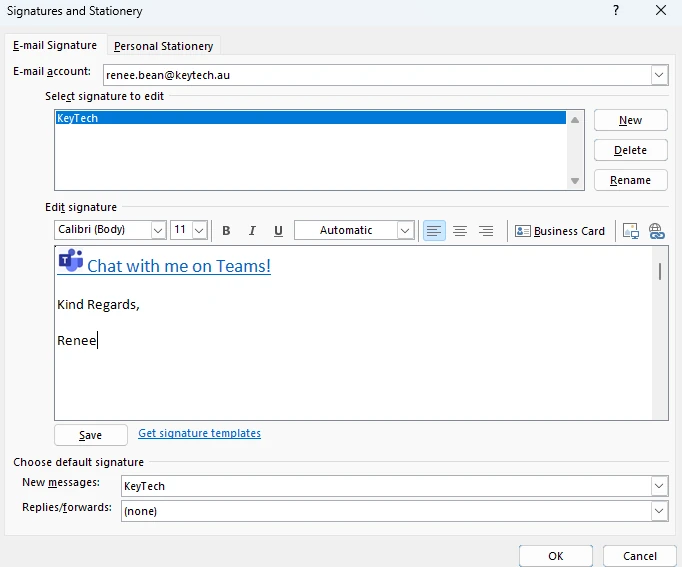
Step 9.
The link has been applied, to save your signature, click “OK”.
Step 10.
Now you can use your signature by clicking on “Signature” again. This time you will see your signature in the dropdown box. Click on the new signature to use it.
Compose your email and send it as you usually would.
Step 11.
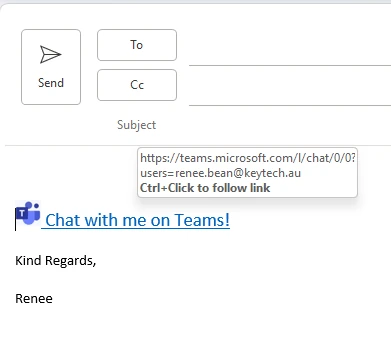
Once you have clicked on the signature that you created, it will appear at the bottom of your email. Test that your link goes to the correct page/application.
Compose or make any edits to your email and send it as you normally would.
Need additional instructions?
Please let us know if you have any difficulties. We are happy to assist you. We welcome your feedback so we can further improve our processes. Our aim is to make your life easier so you can get your time back.
Technology has revolutionised the business world, and there’s no turning back. Now more than ever, businesses of all sizes need to stay competitive. They also must ensure their data remains secure. In order to be competitive and prevent data breaches, businesses of all sizes need to keep up with the latest tech trends. But that’s sometimes more challenging than it sounds. Implementing and managing technologies is a full-time job — one that requires a specific set of skills and knowledge. That’s where IT management comes in.
IT management is the process of planning, organising, and controlling the resources needed to run an organisation’s IT infrastructure optimally. This includes everything from hardware and software to networks, data storage and cyber security. Essentially, IT management is responsible for keeping an organisation’s IT infrastructure operating smoothly and efficiently.
There are many reasons why every business needs IT management. Here are just a few:
To Enhance Data Security
To Stay Current with the latest Tech Trends
To Optimise Efficiency and Productivity
Provide Cost Optimisation Strategies
Enhance customer satisfaction
Enhance Data Security
Recent events such as the Optus Data breach have proven that data security is critical to protecting your company and client data. With hackers becoming more sophisticated every day, it’s now extremely important for companies to have stringent security measures to protect their data and systems from attack. IT management can help develop data security policies to lock down data and user access. IT management can configure security software and implement security protocols such as firewalls, intrusion detection systems, and encryption technologies.
Stay up-to-date with the latest technology trends
One of the most important roles of IT management is to keep an organisation up-to-date with the latest technology trends. Keeping up to date with everything from researching new technologies to implementing them in a manner that will benefit an organisation the most. Staying up-to-date with the latest technology trends allows them to remain competitive in their respective industries. Furthermore, IT management enables businesses to take advantage of opportunities that they might otherwise miss out on if they were using outdated technology.
Optimise efficiency and productivity
Another key role of IT management is to optimise efficiency and productivity within an organisation. Businesses can be optimising efficiency in many ways, such as streamlining processes, automating tasks, and improving communication channels. By optimising efficiency and productivity, companies can get more work done in less time, which can profoundly impact their bottom line.
Cost Optimisation Strategies
IT management can provide companies with strategies to consolidate disparate systems into a single platform or migrate to a more cost-effective infrastructure solution. IT management can negotiate better deals with vendors and suppliers.
Enhance customer satisfaction
Finally, IT management can help companies focus on serving their customers and less on the technology issues that arise due to a lack of support or under-maintained equipment. IT management can help enhance your customer satisfaction by providing self-service options and automation. These services may help many customers to resolve issues independently without a customer service representative. Enhancing customer satisfaction levels result in retaining customers and business growth.
As you can see, there are many reasons why every business needs IT management services to stay competitive in today’s marketplace. If you’re unsure where to start when implementing or managing technologies within your organisation, contact Key Technologies for a chat to discuss your IT needs. We would be more than happy to assist you!
Small businesses with limited resources find it easier to manage when they outsource specific tasks. Not every business is able to employ an in-house team to manage its IT infrastructure. An internal professional can be costly and an IT team can still have limitations. That is where managed IT services come in. Managed IT service providers offer comprehensive solutions that allow businesses to focus on their core competencies while leaving the management of their IT infrastructure to specialists. By outsourcing your IT needs, you will gain access to experienced professionals who will keep your systems running smoothly so you can concentrate on what you do best – running your business!
In a recent case study, a company of more than one hundred staff in five locations approached us because their internal IT person was leaving. We discussed the value a managed service can offer, and how it compares to simply replacing the departing staff member. The following considerations were discussed:
Cost savings: A managed service can be more cost-effective than hiring a new employee, especially if you factor in the costs of recruiting, training, and onboarding.
}
Increased efficiency: With a dedicated team managing your IT infrastructure, you can expect increased efficiency and fewer disruptions to your business operations.
Expertise: Managed service providers have expertise in IT systems and can provide solutions that meet your specific needs. A managed service provider will have specialists in critical areas such as cloud, security,databases, automation, and networking.
Monthly Reporting: As part of the service, most managed service providers provide clients with a monthly report. Their specialised tools allow them to analyse your systems and provide powerful insights into your business, buffered by friendly service offerings which vary according to the client’s needs.
Automation: Small and mid-sized companies often do not have the systems in place to take advantage of automation opportunities. Key Technologies’ IT audit and reports can help you identify and implement strategic automation to allow your staff to concentrate on other tasks that can grow your business.
.
Scalability: Your needs may change over time – a managed service will help your business to scale up or down depending on your requirements.
24/7 support: Managed service providers offer round-the-clock support so you can rest assured that issues will be dealt with promptly.
Peace of mind: By outsourcing your IT management to an experienced team, you can relax knowing that everything is securely and professionally managed.
Microsoft is disabling basic authentication in random tenants worldwide starting October 1, 2022.
Since the announcement in September 2019, there have been multiple reminders and warnings from Microsoft about the move from Basic to Modern Authentication. Millions of tenants have already disabled basic authentication to protect themselves, but millions of others have not made the change.
Starting in October 2022, Microsoft will begin randomly selecting tenants and disabling their Basic Authentication access for MAPI, RPC, Offline Address Book (OAB), Exchange Web Services (EWS), POP, IMAP, Exchange ActiveSync (EAS) and Remote PowerShell. The move exists to protect their information from cyber attackers exploiting the insecure auth scheme.
Microsoft will announce the rollout seven days before commencing, posting the message to the Windows Message Centre. Each tenant will be notified via the Service Health Dashboard notifications when basic auth is disabled.
Although the rollout will disable basic authentication from October 2022, it can be temporarily re-enabled until December 2022. Re-enabling basic authentication will allow anyone who did not prepare for the change to do so before it is permanently disabled in January 2023.
Why is Microsoft disabling basic authentication?
The goal of disabling basic authentication is to improve data security as the number of cyberattacks that leverage basic auth increases.
Basic authentication or legacy authentication is an HTTP-based scheme that applications use for sending credentials in plain text to servers, endpoints or various online services.
Unfortunately, this allows cybercriminals to steal your credentials in middleman attacks over TLS and brute force attacks. they can steal text credentials from apps using basic auth via several tactics, including social engineering and info-stealing malware.
Modern authentication methods include a variety of different techniques that are all designed for increased security. Microsoft’s implementation of Open Authorization (OAuth), allows users to grant limited access rights from their mobile device without having traditional accounts on various platforms like Facebook or Google+.
OAuth access tokens can only be used to authenticate resources they are issued for.
Will this affect you?
The Depreciation of basic auth will affect a number of applications. Migrating to modern authentication will avoid disruptions when basic authentication is disabled on your tenancy. Some applications that will be affected are:
Microsoft Outlook on the Web
Microsoft Outlook for PC & Mac
Microsoft Outlook Mobile App
Mac Mail and Calendar App (10.13 High Sierra and older)
Most IMAP/POP Mail clients e.g. Thunderbird, Eudora
Android Mail
Apple iOS Mail app (iOS 10 and older)
Microsoft Office 2014 or prior
How to be prepared for this change and avoid disruptions
Administrators can disable basic authentication and allow users to use modern authentication through authentication policies. A new Authentication policy can be created and assigned to users.
Update Outlook for Windows, with the correct registry keys in place and the tenant-wide switch, is set to True (without that setting, Outlook won’t use Modern auth).
Implementing IMAP.AccessAsApp and POP.AccessAsApp permissions if you require POP/IMAP for interactive apps.
If you experience any difficulties with your Microsoft apps or need assistance changing to Modern Authentication, Key Tech can help! Call 1300 755 615or send us a message:
Send Us A Message
Interested in driving growth? Have a general question? We're just an email away.
Are you planning to move to a new office and are unsure where to start? We can help you prepare with this short moving checklist and with our IT& phone system &web services, you will be quickly moved in and carrying out business as usual.
Moving to a new office can be an exciting and stressful time. Some new offices are not equipped with enough data and electricity points or can only get a certain NBN type so it is important to consult your IT and Phone company as early as possible to ensure a smooth move.
Below are some things to consider as you plan and schedule the various details of your move.
Key Tech can setup and test your new office network
Check if your new office network is VoIP ready.
When you move to a new location, one of the first things that will need attention is getting connectivity set up and verified. Your IT contractor should take care of this for you by making sure all labels on sockets match what’s been installed in order before testing each cable from end to end as well as ensuring there are ports available for desk phones to operate properly along with printers or other IP devices such intercoms which may also be needed during setup time. Ensure that core switching and routing hardware are properly configured.
If your business is very phone-centric or your staff make a lot of video calls, a typical business bandwidth should easily support your VoIP phone system. If you’d like to be sure, our team can testyour current VoIP network load.
Keep the phone lines active during the move.
Cloud phone systems have been around for a long time and are proven to be convenient and provide a great user experience. They allow businesses to have multiple extensions on any IP-connected device of choice. You will be able to take calls and not worry about being unreachable. The advantages of cloud phone systems continue when we look into the functions of a virtual receptionist!
If you have an on-premises phone system, however, you won’t be able to take calls while your phone system is packed up and in transit on the truck. You must notify your phone company or SIP provider to keep your number active and ask them to temporarily forward your number to a mobile number or a voicemail box until your phone system is set up in the new location.
Packing and moving your IT equipment.
Even if there’s not much gear to move, it can save time and headaches if you hire professionals to pack, ship, install and configure your networked equipment, including your phone system. If moves are local, they are typically scheduled during a weekend to minimise business disruption.
If your servers contain sensitive data that is subject to security regulations, you may need to hire special services to transport and secure the servers during the move.
Test voice quality and extensions at the new location.
You should back up any data stored on your system before moving, such as voicemail messages or recordings. After the move is complete have all employees test their phones immediately when reconnected to make sure there are no issues with connectivity and functionality in the new location.
It is important to include instructions in an email so they know to test things like inbound/outbound calling, leaving voicemails, and internal extensions and conference bridges. By testing early, problems can be dealt with sooner rather than later.
When you’re moving, it’s important to consider the different ways your employees can stay connected to one another and your customers. If you have a cloud phone system, you could introduce your team to a softphone application. They will be able to stay online during the move and be able to receive calls to their extensions while away from their desks. Softphone applications can also function as a backup phone if your office is ever snowed in, out of power, flooded or otherwise unreachable.
Update announcements, greetings, and contact information
If you replace any of your hardware, there are several ways to properly dispose of the old hardware. If your PBX phone system is in good condition, you can call any local and national vendors and they will purchase your used telecom equipment. You can also donate it to a local non-profit organisation or charity. There are also IT recycling services that can take your outdated or retired computers, servers and equipment.
Please note: It is good to practise, particularly in a regulated industry such as healthcare and finance, to ensure that any old company and customer data is irretrievable on hard drives and devices before disposing or donating the items.
The move of your business can be stressful, but it’s also an opportunity to get rid of unnecessary equipment and outsource tasks that are better performed by cloud service providers. By consulting and planning your move with your telecom service, your move will go smoothly with no disruption to your supplier or customer communications and no unpleasant surprises.
Relocating Office Checklist
Consult Key Technologies, Brisbane's trusted company for IT support and business communications.
Ensure you are using the latest version of your Google Chrome and Microsoft Edge browsers because the latest update contains an emergency patch for a high-severity bug that is being exploited by hackers.
Google released a patch to fix the bug a few days ago and now Microsoft has done the same. Tracked as CVE-2022-2294, the bug is present in the Chromium browser engine, so both Chrome and Edge are affected.
Further details about the bug are being restricted for the moment to avoid supplying cyber attackers with ammunition for further attacks while users have time to patch their endpoints.
Known zero-day
“Access to bug details and links may be kept restricted until a majority of users are updated with a fix,” Google said. “We will also retain restrictions if the bug exists in a third-party library that other projects similarly depend on, but haven’t yet fixed.”
Microsoft has decided to stay tight-lipped as well. “This update contains a fix for CVE-2022-2294, which has been reported by the Chromium team as having an exploit in the wild,” the company said in the patch log.
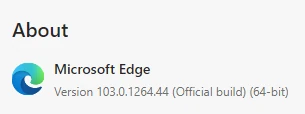
The Edge version that has patched the bug is 103.0.1264.48. Users are urged to check and update the browser immediately.
How to Check your Edge Version
To check (and update) the version of Microsoft Edge browser you are using, click on the ellipses menu (three dots) in the top right and navigate to Help and Feedback > About Microsoft Edge.
You will see the latest version under the About heading. If you need to update, you will be notified and you can click a button to begin the update.
If you need to update, be sure to restart the browser immediately after updating.
How to Check your Google Chrome Version
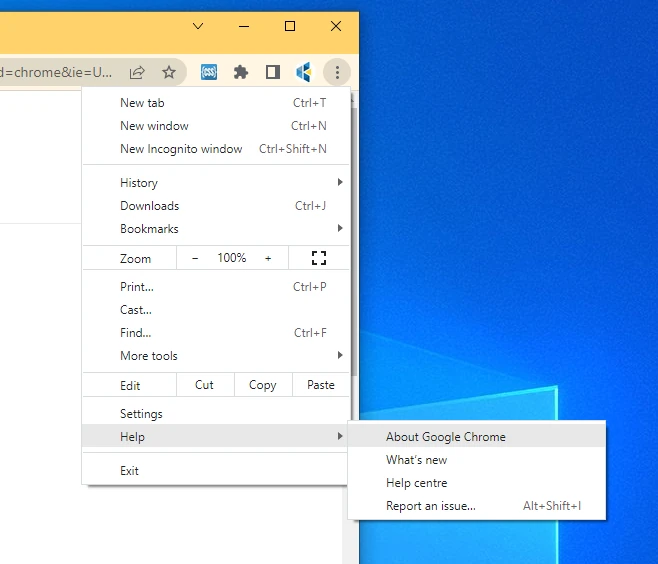
To check (and update) the version of Google Chrome browser you are using, click on the ellipses menu (three dots) in the top right and navigate to Help > About Google Chrome.
You will see the latest version under the About Chrome heading. If you need to update, you will be notified and you can click a button to begin the update.
If you need to update, be sure to restart the browser immediately after updating.
Reach out if you need any assistance or have any enquiries.