Facebook
Microsoft to Disable Basic Authentication from October 1st, 2022

Microsoft to Disable Basic Authentication from October 1st, 2022

Microsoft is disabling basic authentication in random tenants worldwide starting October 1, 2022.

Since the announcement in September 2019, there have been multiple reminders and warnings from Microsoft about the move from Basic to Modern Authentication. Millions of tenants have already disabled basic authentication to protect themselves, but millions of others have not made the change.

Starting in October 2022, Microsoft will begin randomly selecting tenants and disabling their Basic Authentication access for MAPI, RPC, Offline Address Book (OAB), Exchange Web Services (EWS), POP, IMAP, Exchange ActiveSync (EAS) and Remote PowerShell. The move exists to protect their information from cyber attackers exploiting the insecure auth scheme.

Microsoft will announce the rollout seven days before commencing, posting the message to the Windows Message Centre. Each tenant will be notified via the Service Health Dashboard notifications when basic auth is disabled.

Although the rollout will disable basic authentication from October 2022, it can be temporarily re-enabled until December 2022. Re-enabling basic authentication will allow anyone who did not prepare for the change to do so before it is permanently disabled in January 2023.

Why is Microsoft disabling basic authentication?

The goal of disabling basic authentication is to improve data security as the number of cyberattacks that leverage basic auth increases.

Basic authentication or legacy authentication is an HTTP-based scheme that applications use for sending credentials in plain text to servers, endpoints or various online services.

Unfortunately, this allows cybercriminals to steal your credentials in middleman attacks over TLS and brute force attacks. they can steal text credentials from apps using basic auth via several tactics, including social engineering and info-stealing malware.

Modern authentication methods include a variety of different techniques that are all designed for increased security. Microsoft’s implementation of Open Authorization (OAuth), allows users to grant limited access rights from their mobile device without having traditional accounts on various platforms like Facebook or Google+.

OAuth access tokens can only be used to authenticate resources they are issued for.

Will this affect you?

The Depreciation of basic auth will affect a number of applications. Migrating to modern authentication will avoid disruptions when basic authentication is disabled on your tenancy. Some applications that will be affected are:
  • Microsoft Outlook on the Web
  • Microsoft Outlook for PC & Mac
  • Microsoft Outlook Mobile App
  • Mac Mail and Calendar App (10.13 High Sierra and older)
  • Most IMAP/POP Mail clients e.g. Thunderbird, Eudora
  • Android Mail
  • Apple iOS Mail app (iOS 10 and older)
  •  Microsoft Office 2014 or prior

How to be prepared for this change and avoid disruptions

  • Administrators can disable basic authentication and allow users to use modern authentication through authentication policies. A new Authentication policy can be created and assigned to users.
  • Disable Basic authentication in Exchange Online and use Windows-based Outlook clients that support modern authentication.
  • Update Outlook for Windows, with the correct registry keys in place and the tenant-wide switch, is set to True (without that setting, Outlook won’t use Modern auth).
  • Implementing IMAP.AccessAsApp and POP.AccessAsApp permissions if you require POP/IMAP for interactive apps.
  • Use Modern Authentication in Microsoft Teams Rooms
  • Using modern auth to run PowerShell scripts

If you experience any difficulties with your Microsoft apps or need assistance changing to Modern Authentication, Key Tech can help! Call 1300 755 615 or send us a message:

Send Us A Message

Interested in driving growth? Have a general question? We're just an email away.

"*" indicates required fields

Mailing List Consent
Stay up-to-date with the latest news, promotions, and tech advice from KeyTech through our monthly email.
Protect Your Website from Hackers

Protect Your Website from Hackers

There are an average of 30,000 websites hacked daily! Hackers use automated tools to find vulnerabilities to exploit. Their tools can:

  • Guess easy website login credentials
  • Hack in through another website on the same server (shared server)
  • Detect bugs and vulnerabilities within website plugins, themes, and extensions

Signs of a Hack

Often, hackers gain access to a website without being noticed and by the time they have achieved their goal, it is too late.

Signs of a website hack vary depending on the type of hack, the hacker’s agenda and how vulnerable the website is. Some tell-tale signs could include:

  • A defaced website
  • Popups
  • Redirection to other websites
  • Google and Bing alerts in search results
  • Webpages loading very slow
  • Unable to log in to your website
  • More traffic to your website from other countries where you are not focussed
  • Weird code injections in pages
  • Strange activities on your website

Of course, there are loads more characteristics to identify a hacked website rather than focus on them, lets focus on prevention and what to do if you get hacked.

Prevention

Ideally, it is best to prevent a website hack. A website is where your customers can get to know your business so their experience on your website is vital. If your website gets hacked, it will provide them with a bad experience, possibly leak their personally identifiable information and even affect their devices!

The best method of prevention is regularly website maintenance. The following tasks are performed as part of KeyTech’s website maintenance to prevent website vulnerabilities:

  • A Full Website and Database backup, stored in a separate and secure location
  • Security & Malware Scans
  • Platform, Theme, Plugin & Extension Updates
  • Web Server updates
  • Secure your website with HTTPS with an SSL certificate

In addition to website maintenance, ensure that your web hosting has security features such as:

  • DDOS Protection
  • Fortinet firewall
  • 24/7 Malware scanning
  • an encrypted network.

Just like your hosting, your website should have a reputable firewall and security scanner installed to provide another wall of defence against threats.

Creating and storing complex passwords for user logins will also assist in a more secure website. There are some great free password managers available to help with generating and storing complex passwords.

What to Do If Your Website Is Hacked

If your website has been compromised, you must act quickly to prevent further damage. Spread awareness about the incident. Inform other businesses and your clients of the situation you are facing and the problems that might occur as a result.

If your website collects personally identifiable information, you must notify those involved about the breach, as per the Australian Privacy Act 1988.

Contact your webmaster so they can either regain access to your website or restore your website from a recent backup. They will reset user accounts, run an in-depth security scan, and implement additional security and/or security procedures to avoid another hack from recurring.

With an attack every 39 seconds, the statistics are frightening! A successful hack can not only cost businesses time and money, but it can also damage a business’s reputation.

If you want to learn more about this topic or chat with us about our website maintenance services, please reach out to us at your earliest convenience.

Send Us A Message

Interested in driving growth? Have a general question? We're just an email away.

"*" indicates required fields
Mailing List Consent
Stay up-to-date with the latest news, promotions, and tech advice from KeyTech through our monthly email.

Why you should disable Windows “Fast Startup” Mode

Why you should disable Windows “Fast Startup” Mode

Windows 10’s Fast Startup mode is a great way to save time, but it can cause problems.

What is Fast Startup?

Windows 10’s Fast Startup mode saves you from waiting minutes to start your device and will boot up much faster and more efficiently than if you were booting from a fully shut down state. 

How Fast Startup Works on Windows 10

Fast Startup combines the functions of both cold shutdown and hibernation. When enabled, the fast startup function of Windows 10 will close all activity applications and log off users, just like a normal cold shutdown, but, like hibernation mode, the system saves the current system state to a hibernation file for Fast Startup.

Risks of using Fast Startup

Fast Startup may seem like an awesome feature that saves you time but, when enabled, issues can occur. Please consider the following issues that can emerge if you enable Fast Startup:

  • Your device will not fully shut down to apply essential critical updates.
  • Fast Startup can slightly disrupt encrypted disk images. Users of TrueCrypt discover that their drives are automatically remounted when starting back up before shutting down system-wide.
  • Systems that do not have hibernation mode will also not support Fast Startup
  • Windows will lock the hard disk. You won’t be able to access it from other operating systems if your device is configured for more than one operating system. Booting into another may corrupt any changes made since they are no longer visible in Hibernation mode.
  • Fast Startup can make it difficult to access some BIOS/UEFI settings if you have this feature enabled.

Recommendations

We recommend disabling Fast Startup to ensure your device is always up-to date. By doing this, you can help keep your device running smoothly and avoid any potential issues.

How to enable/disable Fast Startup

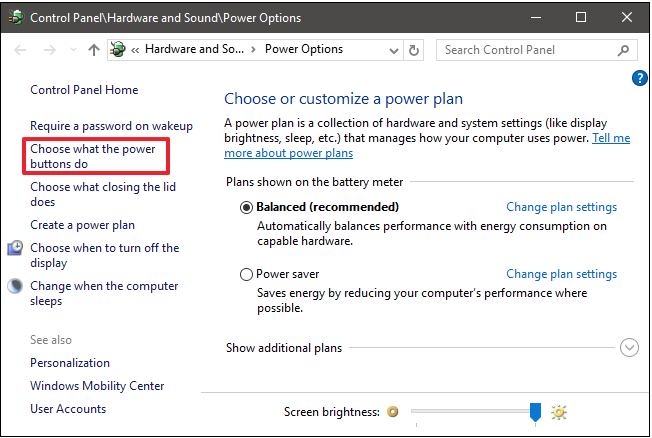
1. Right-click on the Windows Start Menu and select Power Options.
Click the link in the left column "Choose what the power buttons do".
Click the link in the left column “Choose what the power buttons do“.
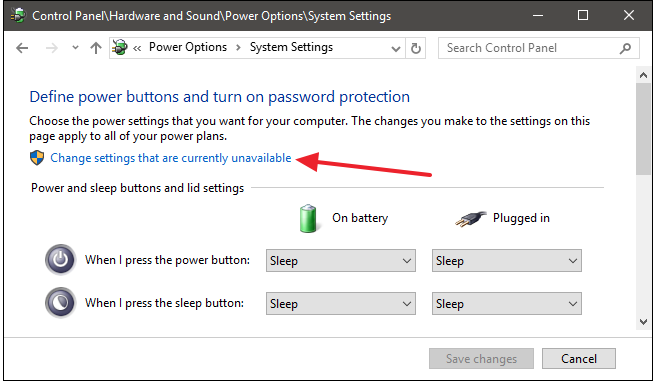
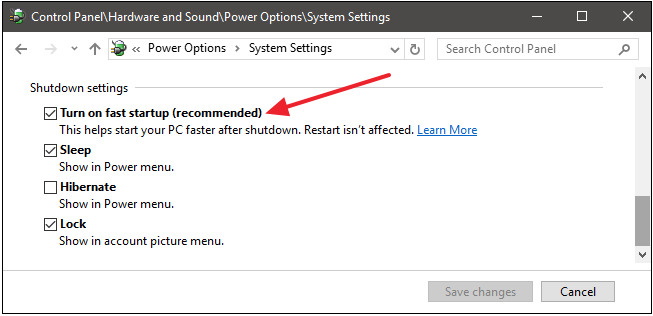
Then click "Change settings that are currently unavailable" to show the Fast Startup option. To enable Fast Startup mode, check the box beside the mode. Unchecking the box disables the mode. If you don't see the option, it means hibernation is not enabled on your device.
Then click “Change settings that are currently unavailable” to show the Fast Startup option.
To enable Fast Startup mode, check the box beside the mode. Unchecking the box disables the mode. If you don’t see the option, it means hibernation is not enabled on your device.

Edge & Chrome Browser Update Required High-severity Bug Detected

Edge & Chrome Browser Update Required High-severity Bug Detected

Ensure you are using the latest version of your Google Chrome and Microsoft Edge browsers because the latest update contains an emergency patch for a high-severity bug that is being exploited by hackers.

Google released a patch to fix the bug a few days ago and now Microsoft has done the same. Tracked as CVE-2022-2294, the bug is present in the Chromium browser engine, so both Chrome and Edge are affected.

Further details about the bug are being restricted for the moment to avoid supplying cyber attackers with ammunition for further attacks while users have time to patch their endpoints. 

Known zero-day

“Access to bug details and links may be kept restricted until a majority of users are updated with a fix,” Google said. “We will also retain restrictions if the bug exists in a third-party library that other projects similarly depend on, but haven’t yet fixed.”

Microsoft has decided to stay tight-lipped as well. “This update contains a fix for CVE-2022-2294, which has been reported by the Chromium team as having an exploit in the wild,” the company said in the patch log.

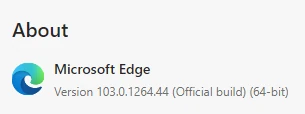
The Edge version that has patched the bug is 103.0.1264.48. Users are urged to check and update the browser immediately.

How to Check your Edge Version

To check (and update) the version of Microsoft Edge browser you are using, click on the ellipses menu (three dots) in the top right and navigate to Help and Feedback > About Microsoft Edge.

You will see the latest version under the About heading. If you need to update, you will be notified and you can click a button to begin the update.

If you need to update, be sure to restart the browser immediately after updating.

How to Check your Google Chrome Version

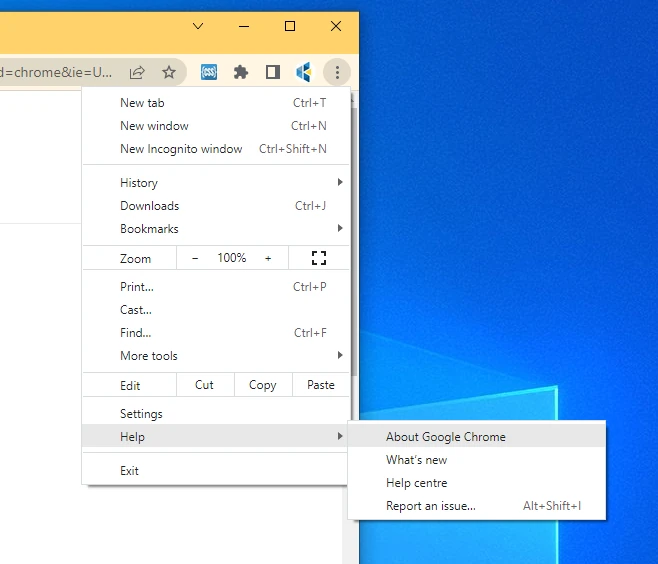
To check (and update) the version of Google Chrome browser you are using, click on the ellipses menu (three dots) in the top right and navigate to Help > About Google Chrome.

You will see the latest version under the About Chrome heading. If you need to update, you will be notified and you can click a button to begin the update.

If you need to update, be sure to restart the browser immediately after updating.

Reach out if you need any assistance or have any enquiries.

Contact Us

  • This field is for validation purposes and should be left unchanged.

How to create a strong password

How to create a strong password

81% of security breaches occur as a result of simple passwords – 36% of those breaches are via phishing attacks. Cybercrime is at a record high, so we are hoping these tips will help you keep your data safe online.

Due to increasing identity fraud and cyber-attacks, we aim to inform you about what a great password should look like and how you can keep your credentials secure. Applying these tips will increase your online security and reduce the risk of a data breach.

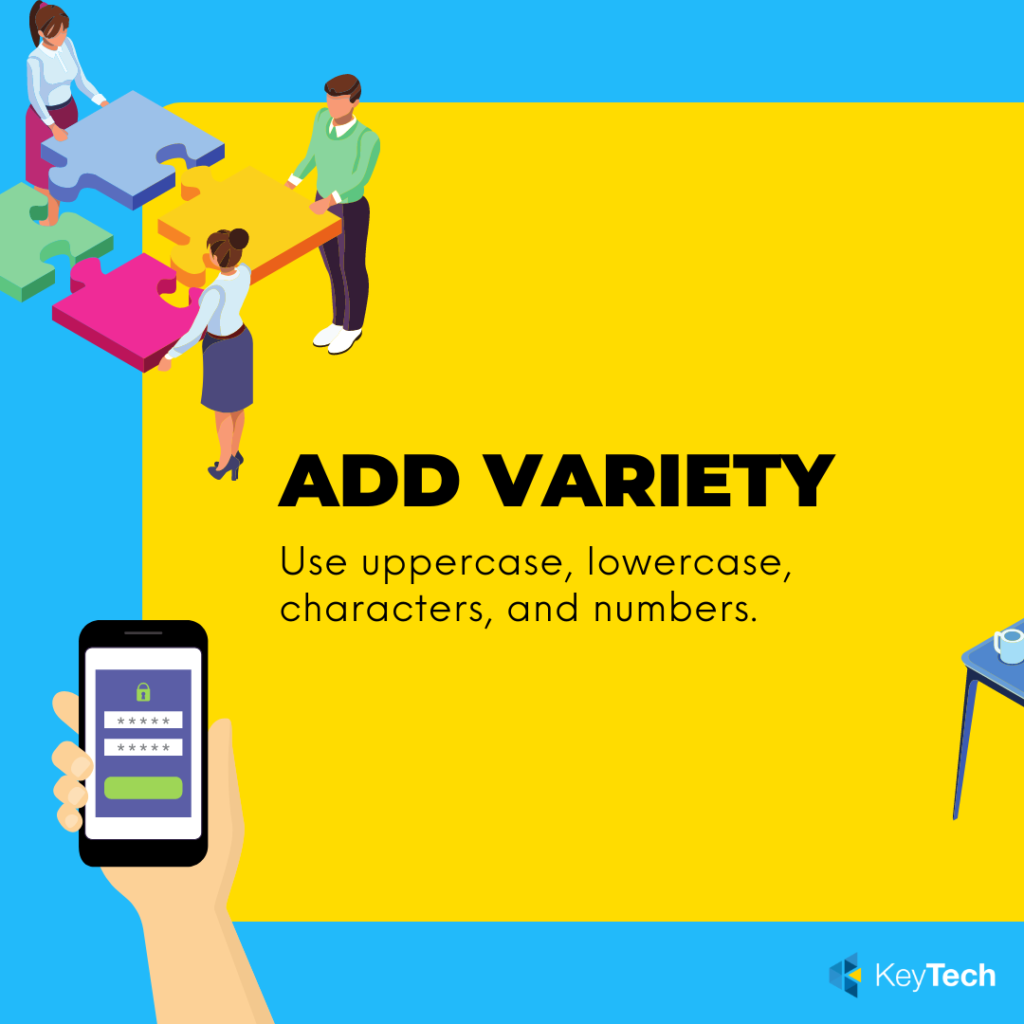
Add a variety of uppercase, lowercase, numbers and symbols into your password

Use a combination of characters.

Use a variety of UPPERCASE and lowercase letters, at least one number (for example 0-9) AND one character (for example !@#$%).

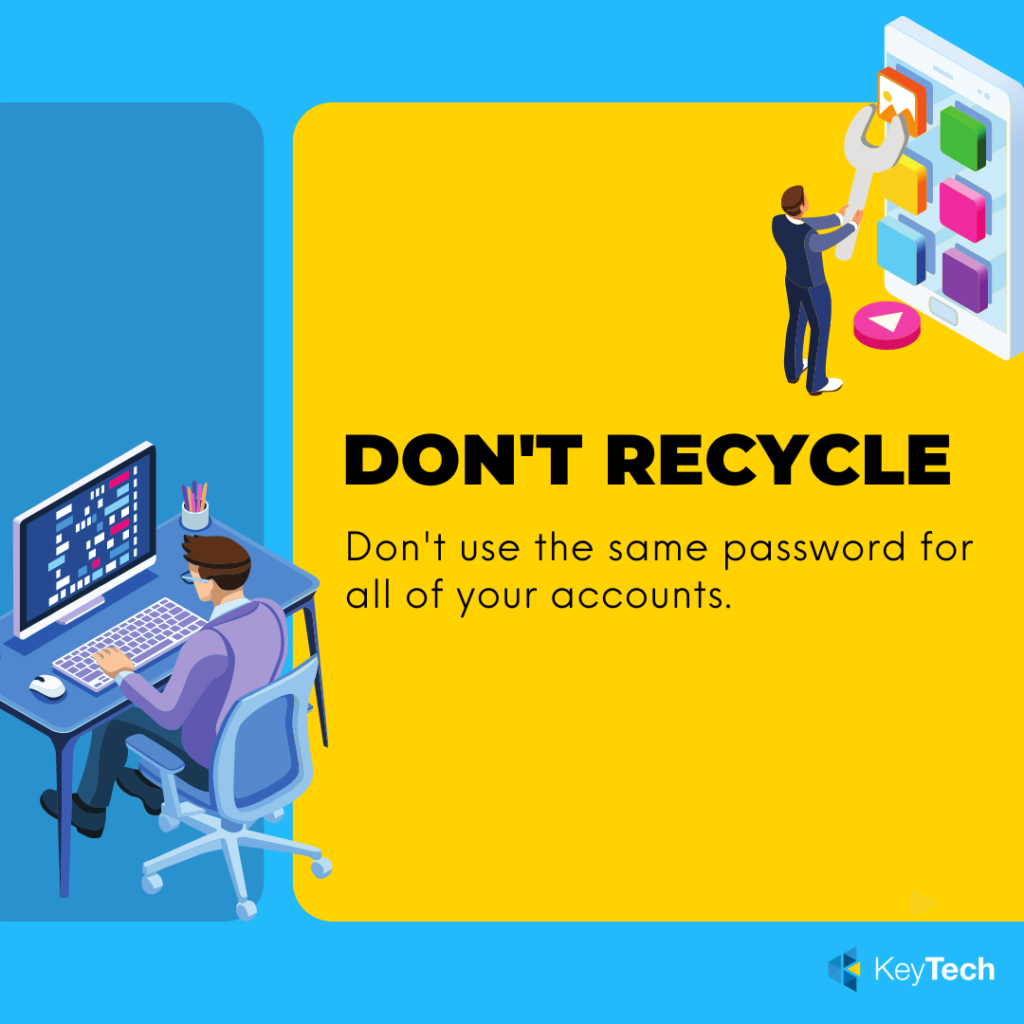
Do not reuse your passwords. If your password is compromised, changing the password slightly does not make it more secure.

Don’t re-use your passwords.

More than one account will be at risk if your password is compromised.

When updating your passwords, ensure they are distinctly original because a slight change will not make them more secure.

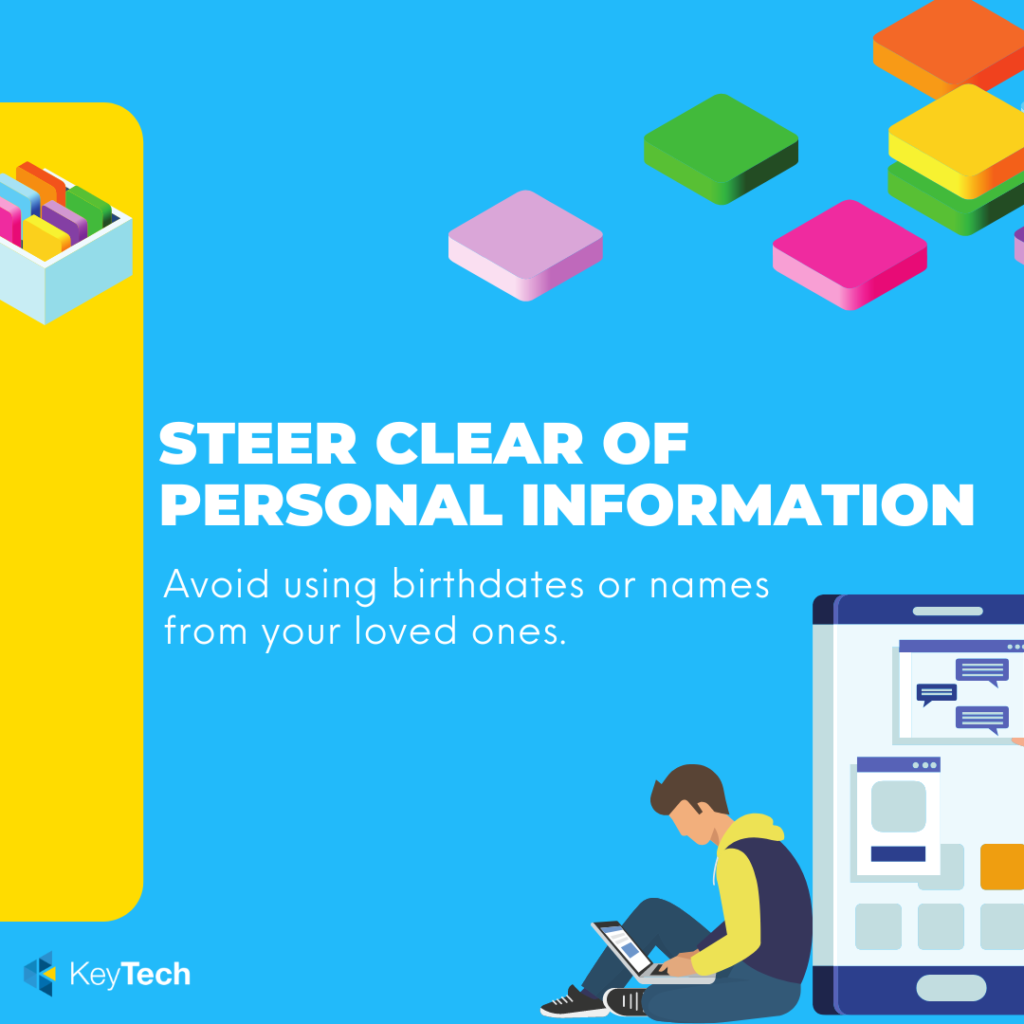
Avoid using personal information in your passwords.

Using personal information in your passwords, such as your date of birth, pet and children’s names can make it easier for someone to hack into your account.

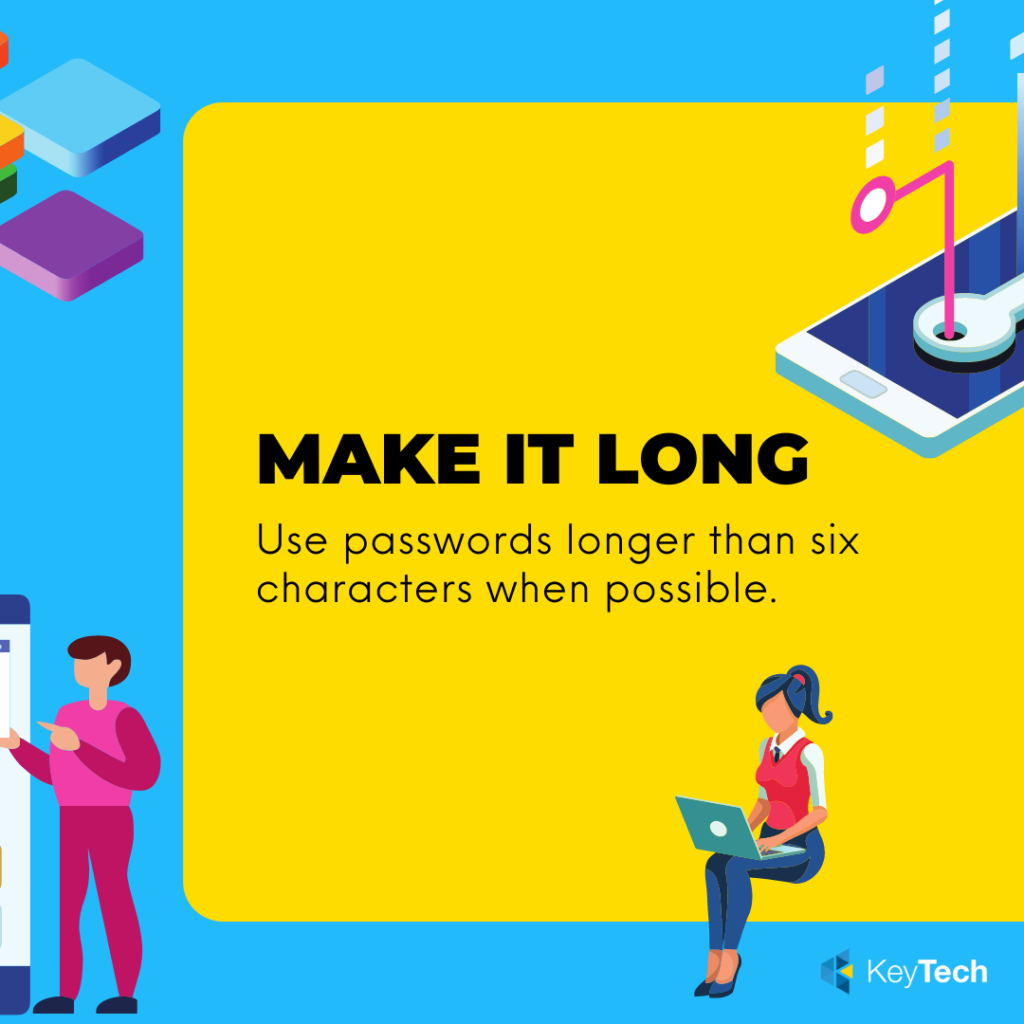
The longer the better!

Long passwords that contain a variety of characters will be more secure.

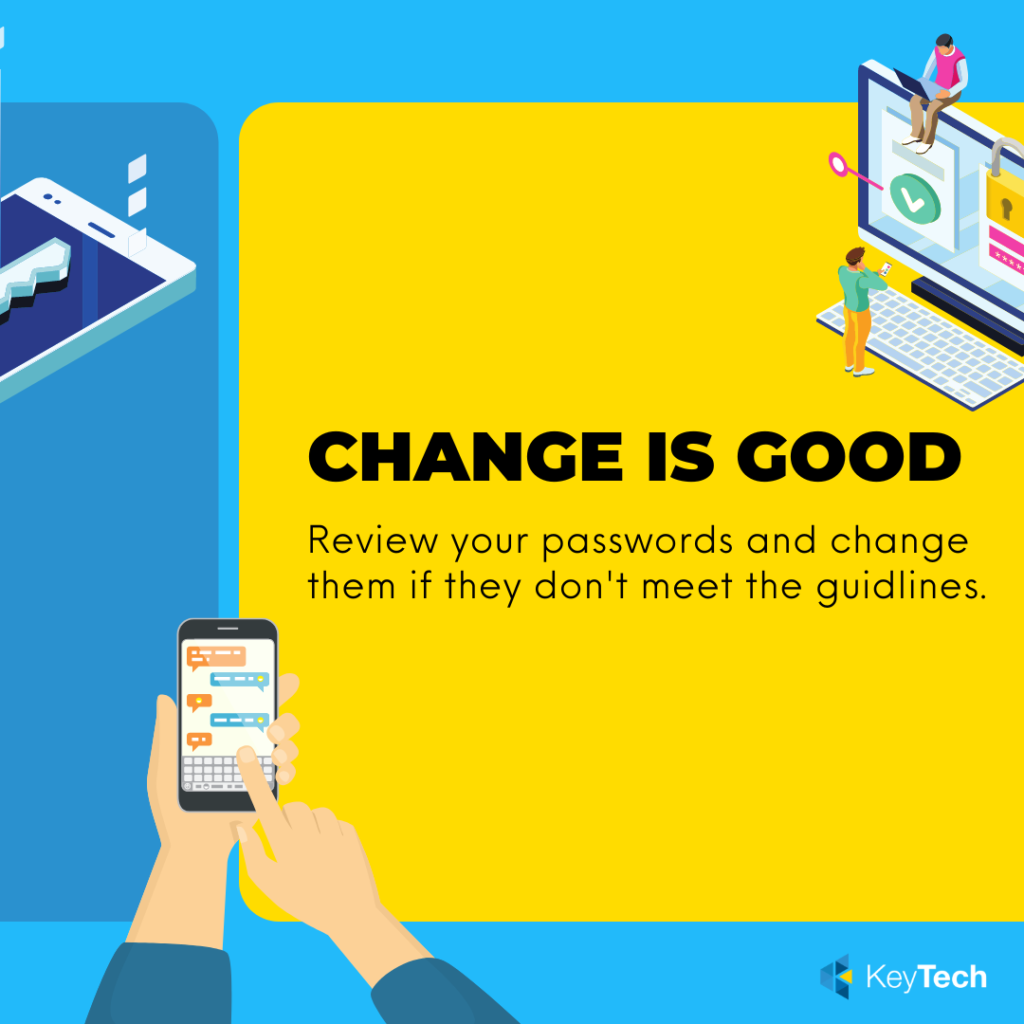
Change your password regularly*

*Changing to a new password every three months can limit breaches to multiple accounts and help your data stay secure online. Ensure your passwords are completely different and do not use a variation of the previous password.

Use a password manager.

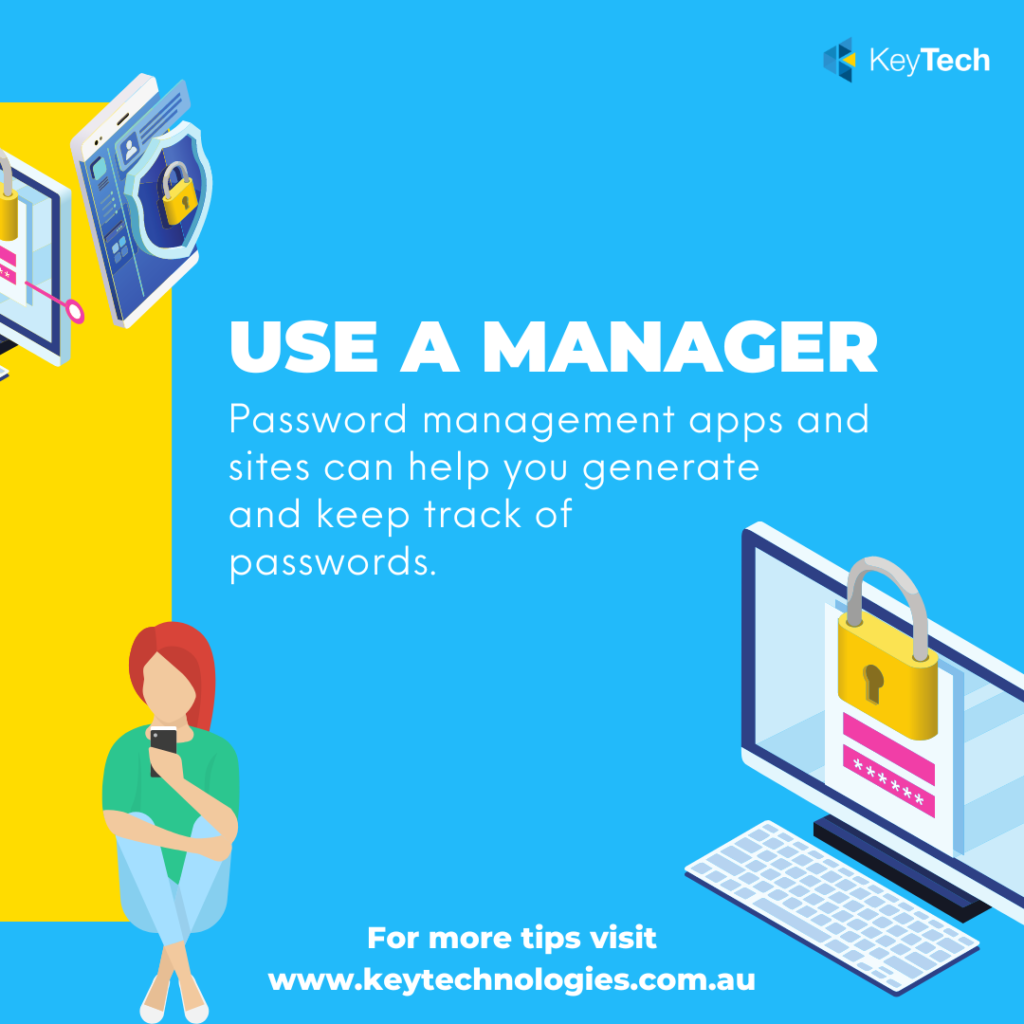
There are a number of password managers available to individuals and businesses. A password manager gives you a central location to store all of your passwords. Password managers can generate secure passwords too!

Password Management

Password Management

Did you know that 81% of security breaches happen because people fail to secure their passwords and credentials?

Managing various websites and system credentials can seem tricky and many of us are guilty of using the same password across multiple websites or writing passwords in a book and leaving them unsecured. These practices can put your accounts at risk to fraudsters, cyber-attacks and hackers.

Due to increasing identity fraud and cyber-attacks, we aim to provide you with information that will help you stay safe online.

Following on from our article “How to Create Complex Passwords and Stay Safe Online”, we would like to introduce you to some leading password managers that will help you manage your passwords.

Password managers are a brilliant tool for everyone – corporate, small business, personal, students and families – to store all of your passwords securely in a central location.

A password manager can prompt you to save new login credentials and update any that it detects has changed. When you return to a website on which you have credentials stored, the password manager can detect your saved credentials and automatically fill in the login fields for you.

Password managers have a built-in password generator feature to help you create and update old passwords. They have an easy copy and paste functionality and can be used and accessed across many devices and operating systems.

Some password managers have account limitations such as a limit on the number of devices or operating systems you can use on a free account. To get the one that is right for you, compare them and see what features you would like in a password manager. Password managers range in cost from free to a monthly or annual subscription. Costs vary and depend on the features you require.  Talk to the KeyTech team to learn more about enhancing IT security in your business for more tips.

Keeper Password Manager

LastPass password manager

LogMeOnce Password Manager

1Password Logo

KeePass password manager

Leading Password Managers

Discover some of the leading password managers below. Each has a free account option that you can try.

Keeper Password Manager

https://www.keepersecurity.com/en_GB/

Rating

★★★★★

Keeper has an account for enterprise, business, personal, family, student, military & medical users and is available for all popular platforms and browsers.

PROS

  • Well-designed interfaces with cross-platform syncing
  • Multi-factor authentication
  • Secure password sharing
  • Secure file storage & messaging (optional)
  • Records a full history of passwords and files

CONS

  • Limited free version


LastPass password manager

https://www.lastpass.com/pricing

Rating

★★★★★

This password manager offers many brilliant features for little to no cost. Below are some free features that LastPass has:

  • Secure password vault
  • Access on one device
  • Save & fill passwords
  • Password Generator
  • Secure notes
  • Multi-factor authentication
  • LastPass authenticator
  • Basic support

PROS

  • Can be used on major platforms and browsers
  • Password strength report and dark web monitoring tools
  • Secure sharing and password inheritance
  • Two-factor authentication

CONS

  • Syncing limitations for free users
  • Some personal data types can’t be used for form filling
  • No support for modern Universal Two-Factor 


LogMeOnce Password Manager

https://www.logmeonce.com/

Rating

★★★★★

LogMeOnce offers free, professional and family accounts. The free LogMeOnce account has similar features to LastPass but offers: 

  • Unlimited Devices & Sync
  • Stores up to 3 Credit Cards
  • Password Calculator

PROS

  • Easy to use
  • Password strength report
  • Two Factor Authentication
  • Robust security features

CONS

  • Paid plans are required to share more than a few passwords and files
  • An overwhelming number of features


1Password Logo

https://1password.com/

Rating

★★★★★

Easy to use, this password manager syncs passwords and personal data across all your devices.

PROS

  • An app for major operating systems (Windows, macOS, Linux, Android &iOS)
  • Intuitive password organisation
  • Simple and secure authentication when adding new devices
  • Multi-factor authentication

CONS

  • Limited import options
  • Lacks inheritance feature


KeePass password manager

https://keepass.info/download.html

Rating

★★★★★

KeePass has superior customisation and security but may be difficult to use with its dated interface.

PROS

* Excellent security

* Multi-factor Authentication

* Always free

*Optional Portable database storage

CONS

  • Not intuitive suits tech-savvy users
  • No live user support
  • Plugins are often required for features built into other password managers